What type of thread does PODpartner use for embroidery?
We use COATS Sylko 120D thread for embroidery due to its durability, and resistance to abrasion, chemicals, and UV rays. Its smooth texture allows for easy threading and consistent stitching, ensuring professional results that maintain vibrant colors and integrity through repeated washing and varying conditions.
What's the maximum number of allowed colors in embroidery?
Up to 15 thread colors can be used simultaneously in your embroidery designs. The number of thread colors you choose doesn't affect the embroidery price. You can use all 15 colors without worrying about additional costs.
What embroidery specifications do I need to follow?
When uploading an image for embroidery in our Design Creator, here are some key recommendations:
1. Avoid complex details or small text
Fine details can be lost due to texture size limits, and extremely thin elements and small text often don't turn out well in embroidery.
2. Avoid small gaps
Ensure the density of the embroidery stitches; if the density is too low, the threads may become loose, resulting in small gaps, exposing the fabric and affecting the overall aesthetic.
3. Don't use photographs
Photographs don't translate well into embroidery during digitization and typically produce unclear results.
4. Don't use gradients or blend effects
Gradients don't work well in embroidery because smooth color transitions are not achievable.
For a detailed guide on creating the perfect embroidery file, please refer to our design guideline.
If you already have a DST file or plan to request it from a service provider, please pay attention to the information in the table below:

Can I order an embroidery sample?
Yes, you can order an embroidery sample from PODpartner. Follow these steps:
1. Select a garment, design it, and save the template. Then, click on "Create an Order".

2.In the pop-up window, click the "Place an Order" button under "Sample Order". Select the color, size, and quantity.

3.Proceed to "Edit shipping info" to select or create an address and choose a shipping method, then click "Proceed to payment".

4.Select a payment method and click "Pay Now".
5.Once payment is completed, PODpartner will begin production and ship the sample to you.
What file formats can I upload for embroidery?
You can upload images in JPG or PNG formats, and we will digitize them for embroidery. Learn more about our embroidery digitizing service here.
We also support uploading embroidery files in .dst format.
Additionally, you can customize your embroidery using text with a choice of over 110 fonts.
What Is Multi-process Fee?
The multi-process fee, set at USD 2.99, is an additional charge applied to product pricing when using multiple printing methods (such as DTG+embroidery) on a garment. This fee covers the increased complexity of production, as garments need to move between different production lines. It also accounts for higher labor costs, stricter quality control, and potential scrap costs associated with remaking flawed garments due to the higher risk of errors with multi-process printing.
How do I create a product bundle for Shopify?
With just a few clicks, you can quickly create a bundle of multiple products on Shopify and sync them together to your online store as a single listing. For other platforms, you can create bundles of two products and sync them as a single listing.
1.When adding a product template to your integrated online store, you will see a button "Add product" under the variant settings;

2.Click the "Add product" button;
3.Choose another product template you want to bundle together from your list of product templates;

4.Select variants for the second product;

5.Configure variant settings(optional)
If you want to treat different product templates as independent variant types (e.g., styles), you can: Toggle "Use product template as a separate variant", the system will merge identical color names from different product templates into a unified option, providing a better user experience.
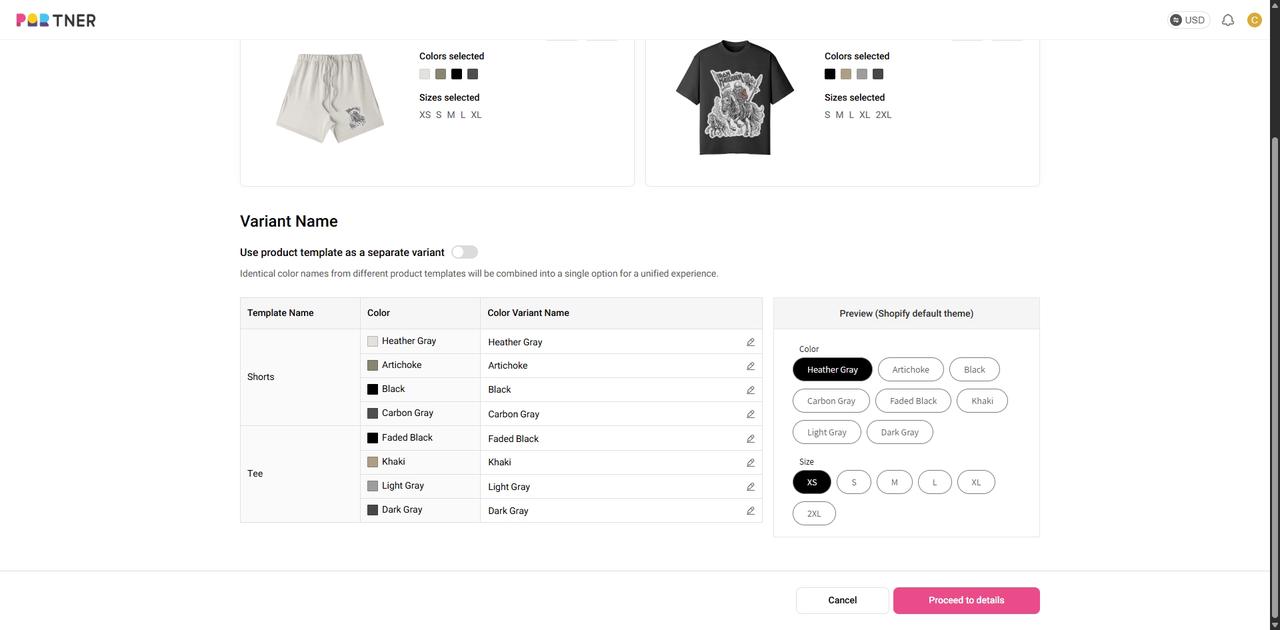
In the pop-up window, name the Template Variant. Click "Save" to save your settings.

6.Select product images and edit the product description for your bundle product page.
7.Link packaging design templates(if needed)
8.Set product prices for each product template, and you're ready to go!

 USD
USD