How do I set up shipping rates for my Wix store?
Log into your Wix account > Settings > Shipping & fulfillment > set up shipping rates
How do I integrate my Wix store with PODpartner?
To begin with, you need to have a Wix account with which you’ve created a storefront. Then, you can go to PODparnter’s Dashboard > Stores > Click “Add new store” at the top right corner > Hit “Connect” under Wix > Log into your Wix account > Choose the store to connect > Authorize the integration by clicking “Add to site”.
Why can’t I find my PODpartner product in my Etsy store listings?
This could occur if you have selected “Hide in store” when pushing a product to your Etsy store. In this case, the product will not be visible on your storefront. If you want it to be listed, head to Shop Manager on Etsy > Listings > Draft/Inactive > find the product and publish it.
Why can’t I publish my products to Etsy?
This usually happens for two reasons.
- Your Etsy store is not active.
We suggest you complete the Etsy store setup steps and retry publishing your PODpartner products.
To make sure your Etsy store is active, please double-check if you have completed all the following steps :
- Set your store preferences
- Complete the ID verification process on Etsy
- Set up your payment accounts and billing
- Create at least one product listing on Etsy
- Set up two-factor authentication for your Etsy account (you can turn it off later)
- Your Etsy listing has been deactivated or removed
This could be due to a violation of Etsy policies, such as intellectual property infringement, inappropriate content, prohibited items, misleading listing, etc. Etsy will send you an email explaining why your listing was deactivated.
Still having issues? Reach out to our customer support team and we’d love to help.
How do I publish products to my Etsy store?
After connecting your Etsy store with PODpartner, you have the following two ways to publish your customized products.
Option 1:
1. Pick your favorite garment in the product catalog and design it;
2. After you finish the design, save the template, click the "Add to store" button in the pop-up window, then select the store you want to publish to;
3. Edit the product’s variants and description, set its retail price, and hit the "Add to store" button to publish the product to the selected online store.
Option 2:
1. Go to Dashboard and click on "Product Template" ;
2. Choose a template you previously created, click the "Add to store" button, then select the store you want to publish to;
3. Edit the product’s variants and description, set its retail price, and hit the "Add to store" button to publish the product to the selected online store.
How do I connect my Etsy store?
Please make sure you have set up your Etsy store, then follow the steps below to complete the Etsy integration.
1. Log in to your PODpartner account;
2. Go to Dashboard > Stores > Add new store;
3. Click the "Connect" button under the Etsy icon;
4. Click on "Connect to Etsy";
5. Log in to your Etsy account and click on "Grant access".
That’s it! Now you can start syncing PODpartner products to your Etsy store.
Why are my Shopify store products showing as sold out?
After connecting your Shopify store and publishing products, you may notice that some items appear as “Sold Out.”
This usually happens for one of the following reasons:
Common causes:
- Shipping rates are not set up in your Shopify store.
- No active shop markets have been configured for your store.
- The “Track Inventory Quantities” option in Shopify has been enabled manually.
How to fix it:
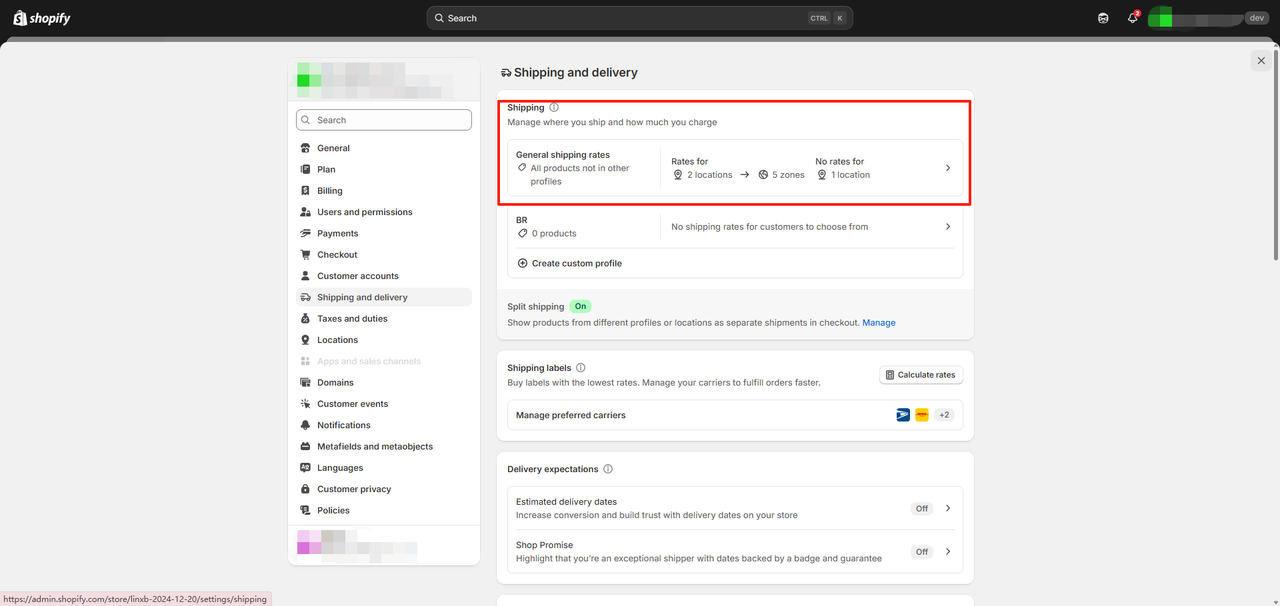
1.Set up shipping rates
Go to Shopify Admin > Settings > Shipping and delivery, and add your shipping rates.
Make sure all relevant regions and products have valid rates assigned.
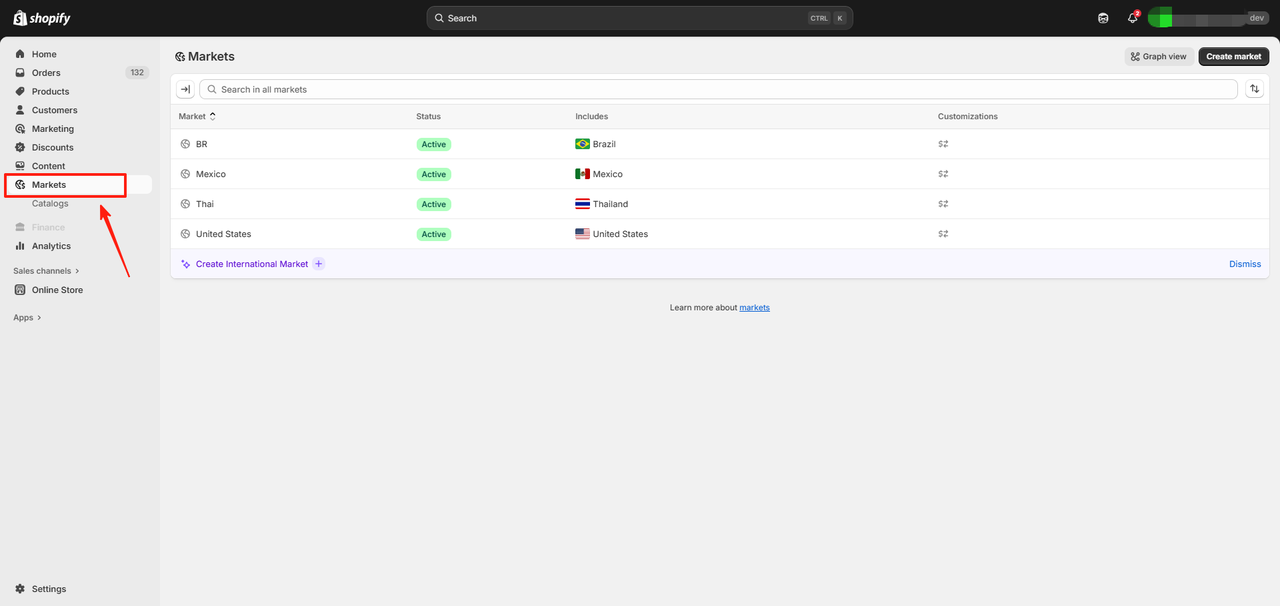
2.Configure shop markets
In Shopify Admin > Settings > Markets, set up your target countries or regions where you want to sell.
Ensure that your products are available in those markets.
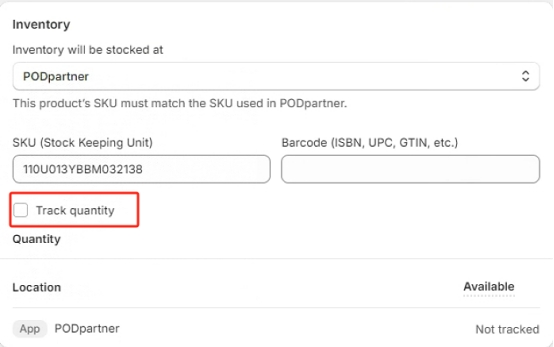
3.Disable inventory tracking
In your product settings, make sure “Track quantity” is turned off.
You can safely ignore notifications such as “Inventory is not tracked at PODpartner” or “Inventory is not tracked at any location.”
Can I track the shipment on Shopify when PODpartner ships out my orders?
Once your order is fulfilled by PODpartner and shipped out, its shipment info, including the tracking number, will be synced to your Shopify store. The shipment status on Shopify and PODpartner will be updated simultaneously.
Why did my Shopify orders fail to be fulfilled by PODpartner?
Typically, your Shopify orders will be automatically imported to PODpartner. If you directly publish a PODpartner product to your store without further adjustment on Shopify, you don't have to worry about order fulfillment failure.
However, if an order fails to come to PODpartner, it's most likely caused by one or both of the following reasons:
The product variant SKUs in your Shopify store do not match those on PODpartner.
"Inventory managed by" is not set to PODpartner for each product variant.
How to know if "Inventory managed by" is set to PODpartner:
1. In your Shopify dashboard, navigate to "Products" → "All products";
2. Click on a product of your choice → go to "Variants" → click on "Edit";
3. Scroll down to the "Inventory" section and view the current settings.
Still having issues with your orders? Contact us at service@podpartner.com , and we'll be happy to help!
Why does Shopify say “The item you added doesn’t ship to your location”?
This issue usually occurs when the countries/regions of your Shopify Markets do not match the destinations in your Shopify Shipping settings. You can go to Shopify > Settings > Shipping and delivery > adjust the destinations.
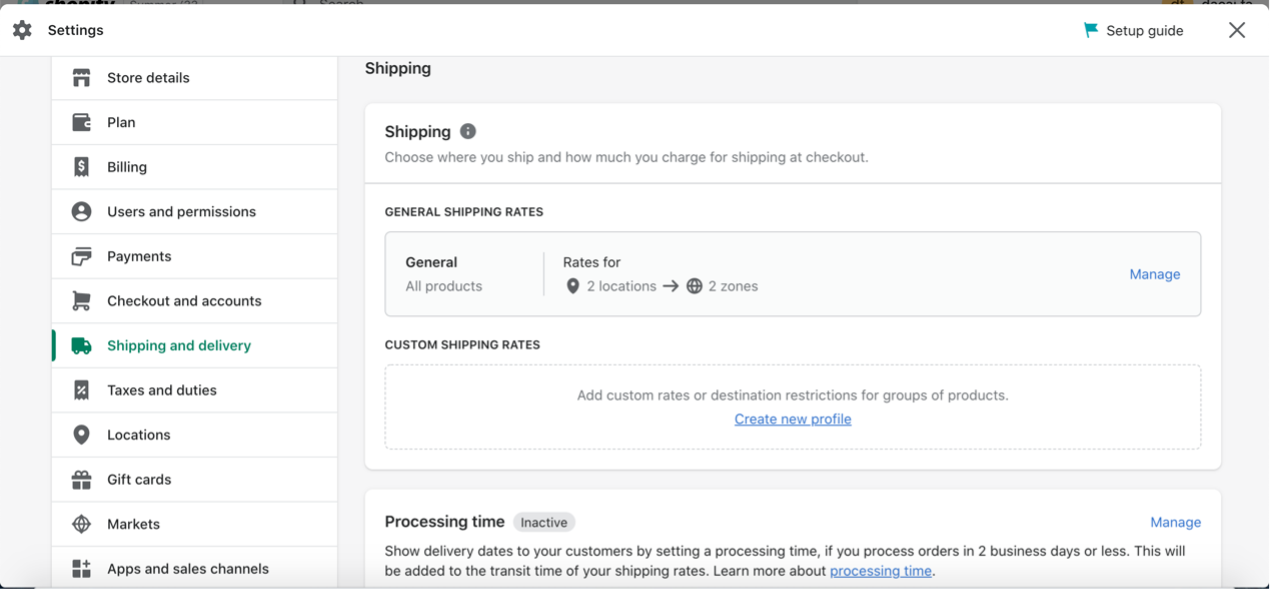
When you sync a PODpartner product to your Shopify store, the Shopify shipping rates will be automatically set to General, which could cause the abovementioned issue. What you can do is update your Shopify General Shipping Rates after the syncing to ensure the destinations are the same as in Markets.
Another option is to create a Shopify custom shipping profile and manually link it to the PODpartner products that have been published to your store.

- How it works
- Shipping
- About us
- Blog
- CapabilitiesPersonalizationJumbo DTG
- Help center
 USD
USD