How do I publish products to Shopify?
After connecting your Shopify store with PODpartner, you have the following two ways to publish your products.
Option 1:
1. Pick your favorite garment in the product catalog and design it;
2. After you finish the design, save the template, click the "Add to store" button in the pop-up window, then select the store you want to publish to;
3. Edit the product’s variants and description, set its retail price, and hit the "Add to store" button to publish the product to the selected online store.
Option 2:
1. Go to Dashboard and click on "Product Template" ;
2. Choose a template you previously created, click the "Add to store" button, then select the store you want to publish to;
3. Edit the product’s variants and description, set its retail price, and hit the "Add to store" button to publish the product to the selected online store.
When you sync a product to your store, you can decide whether or not to make the product visible to your customers. If you want to hide it for the moment, check the “Hide in store” option before publishing. You can always manage the product later in your Shopify dashboard.
How do I integrate my Shopify store?
Before the Shopify integration, you need to first have a Shopify account and a PODpartner account.
1. Once you have successfully registered both accounts, go to PODpartner Dashboard and choose "Stores" on the left sidebar;
2. Click on “Add new store”;
3. Click the "Connect" button under the Shopify icon, and you will be redirected to the Shopify app store page;
4. Click on "Add app" and log in to your Shopify online store ;
5. Hit the "Install app" button to authorize the installation of the PODpartner app.
Is there any chance my customers might find out about PODpartner in my store?
No. There won’t be any information about PODpartner on your storefront or product packaging.
What happens after the integrations?
Publish your products
Once your online store is integrated with PODpartner, you can sync the customized products to your online store with ready-to-use product descriptions & images and set the retail prices.
Order Processing
When a customer places an order containing at least one PODpartner product in your online store, the order will be automatically imported to us. We will start the production shortly after you complete the payment.
Order tracking
You can track the entire process of order fulfillment on PODpartner, including the production and shipping.
Make profits
The difference between your retail price and your order cost is the profit. After the order is delivered and your customer is happy with the purchase, your profit is in the bag. Keep up the good work and reap the rewards.
Which eCommerce platforms are integrated with PODpartner?
We’re currently integrated with several popular eCommerce platforms such as Shopify, Etsy, Wix, WooCommerce, and Squarespace. More integrations will soon become available in the future.
Why don’t we print white designs on white garments?
We do not offer printing white ink on white garments. This is because white ink is not visible on white fabric, and the printed design would not show up.
How to add and manage sub-account permissions under your PODpartner Account?
You can add sub-accounts to your PODpartner account and assigning different permissions. This allows you to control what each sub-account can access and do in your account.
To add sub-accounts to your PODpartner account, follow these steps:
1. Log in to your PODpartner dashboard.
2. Go to Settings > Sub-accounts
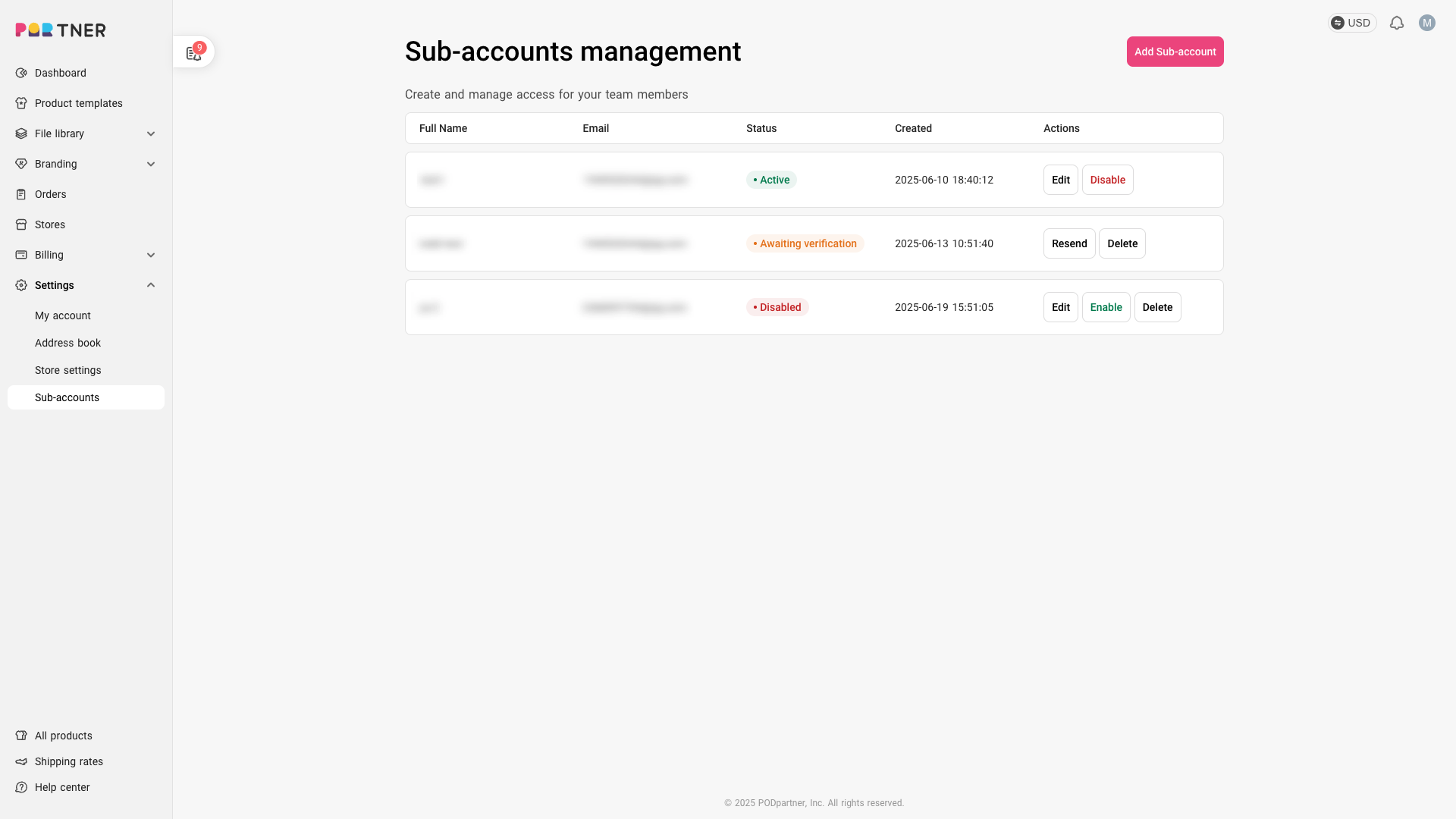
You can disable, delete, or edit the permissions of a sub-account at any time on this page.
3. Click Add Sub-account, enter their full name and email address, choose their permissions, and click Create Account.
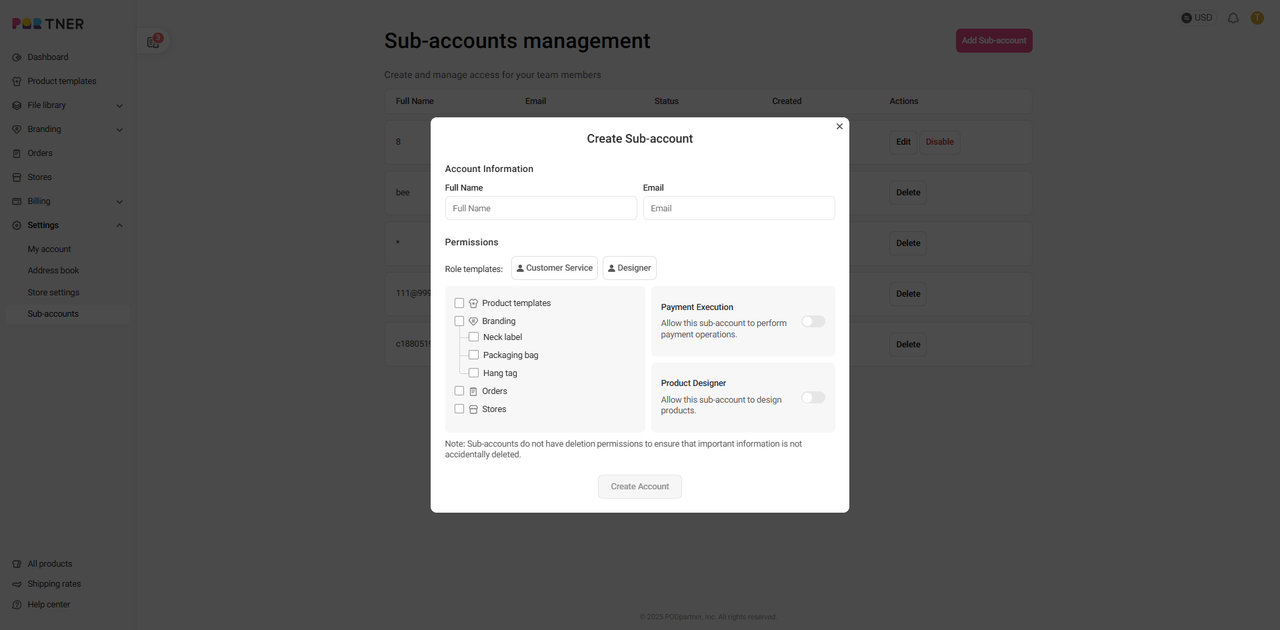
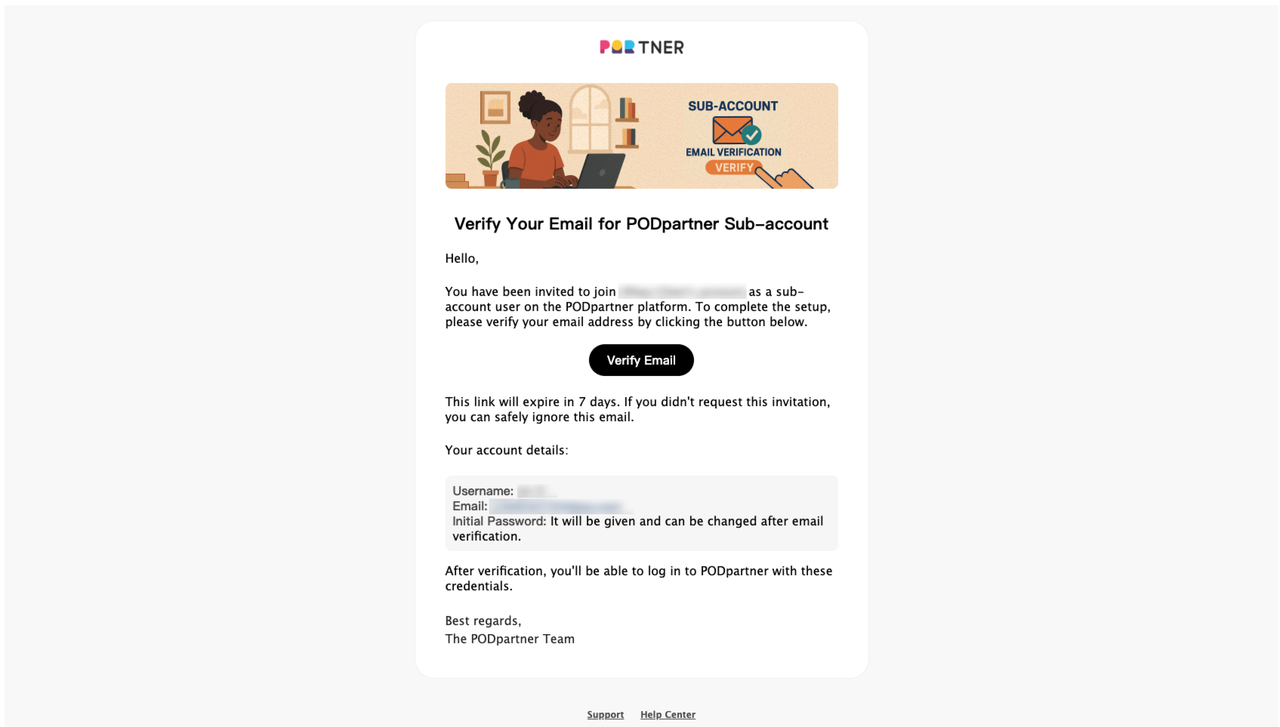
4. The new user will receive a verification email that they need to click to activate their account. Once verified, they'll get their initial password, and you'll see their status change to "Active" in your Sub-accounts management page.
Please note:
- If someone already has their own PODpartner account, they cannot become a sub-account of another account. They would need to use a different email address.
- Sub-accounts cannot perform any deletion operations. This safety feature prevents important information from being accidentally removed and helps protect your business data.
What is a sub-account?
A sub-account is a way to give team members access to your PODpartner account without sharing your main login credentials. Think of it as creating separate user profiles within your account, each with their own login and specific permissions.
Each sub-account can be assigned different menu permissions when you create it. You can edit these permissions anytime after creation.
To add a sub-account, please refer to this link.
Contact us
If you have any questions or concerns, please do not hesitate to contact us.
We would love to hear from you, contact us on:
Email: service@podpartner.com
What if I forgot my password?
If you forgot your password, please follow these steps to reset it.
1. Click on "Forgot Password" on the login page.
2. Enter your registered email address, and a password reset link will be sent to your email address.
3. Sign in to your email account, click on the password reset link, and save a new password.
4. Start using the new password to log in to your PODpartner account.

- How it works
- Shipping
- About us
- Blog
- CapabilitiesPersonalizationJumbo DTG
- Help center
 USD
USD