
 USD
USD
How to Mark Product Sold Out on Shopify: 5 Easy Ways


Most merchants hate seeing the words Sold Out. It feels like money left on the table.
But in practice, not marking items as sold out causes far bigger problems.
When a customer sees a clear “Sold Out” label, two things happen immediately. First, it signals demand. Second—and more importantly—it signals honesty. You’re telling them you won’t take their money unless you can actually ship the product.
When stores fail to do this properly, the fallout is predictable: refunds, apology emails, chargebacks, and eventually payment processor warnings. That’s not a UX issue. That’s a business risk.
The good news is that Shopify already gives you everything you need to manage sold-out states correctly. You just have to use the right method for how your store actually operates.
How Shopify Really Decides If Something Is “In Stock”
Before touching any settings, it helps to understand one thing: Shopify doesn’t know what you physically have. It only knows the rules you give it.
Every “Sold Out” state is the result of three checks:
- Is inventory tracking turned on?
- Is the inventory quantity at zero?
- Is “Continue selling when out of stock” disabled?
If any of those conditions fail, the product stays purchasable.
This is also where many sellers get confused when using print-on-demand or dropshipping apps. In those cases, Shopify often isn’t the source of truth—the app is. You can change numbers manually, but the next sync will overwrite them.
Once you understand that hierarchy, everything else makes more sense.
Method 1: Set Inventory to Zero (The Simple, Honest Way)
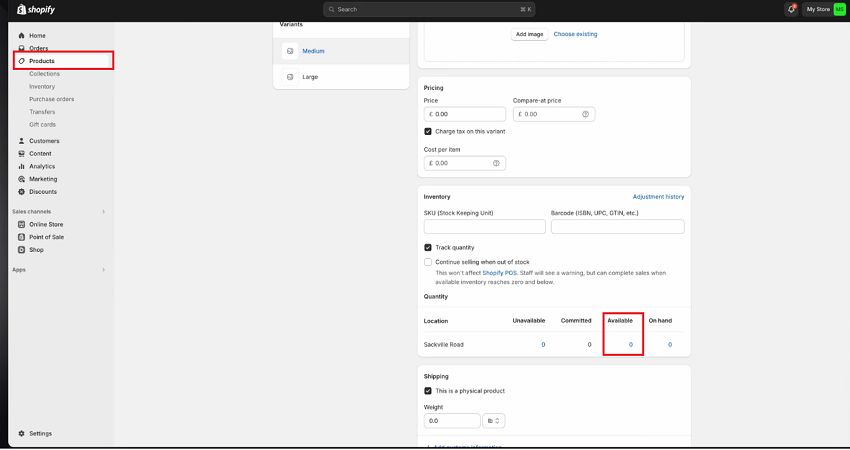
If you manage your own stock, this is the most straightforward option.
Turn on Track quantity, set the available inventory to 0, and Shopify will mark the product as sold out.
Where people mess this up is with multiple locations.
If you have more than one fulfillment location—even one you forgot about—Shopify adds them together. One stray unit sitting in a retail location is enough to keep the product live.
If you want the item sold out, every active location needs to be at zero. Miss one, and Shopify ignores your intent.
Method 2: Stop Sales Without Deleting the Product
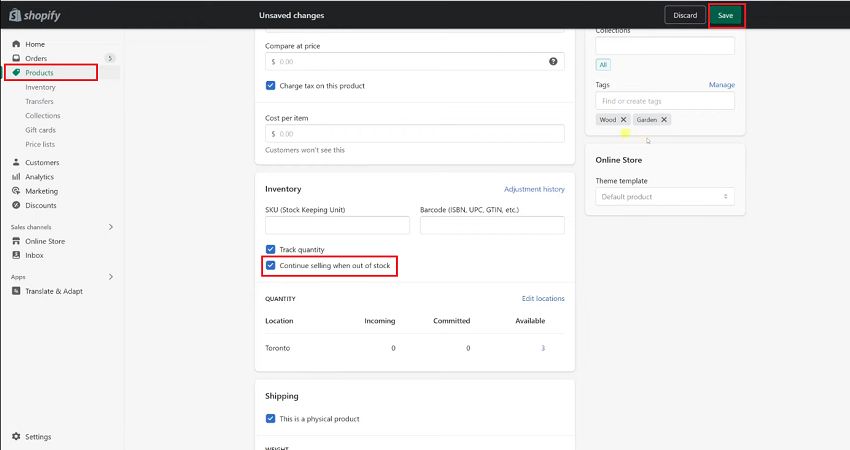
Sometimes you don’t want to sell—even if you technically could.
Quality checks. Temporary pauses. Planned drops. Internal chaos. It happens.
In those cases, deleting or archiving the product is usually the wrong move. You lose SEO value, reviews disappear, and bookmarked links break.
Instead, disable “Continue selling when out of stock” and set inventory to zero.
The page stays live. Customers can still view details, read reviews, or join restock alerts. Google keeps indexing it. You stay in control.
This is one of the most underused settings on Shopify.
Method 3: Mark Only Certain Variants as Sold Out
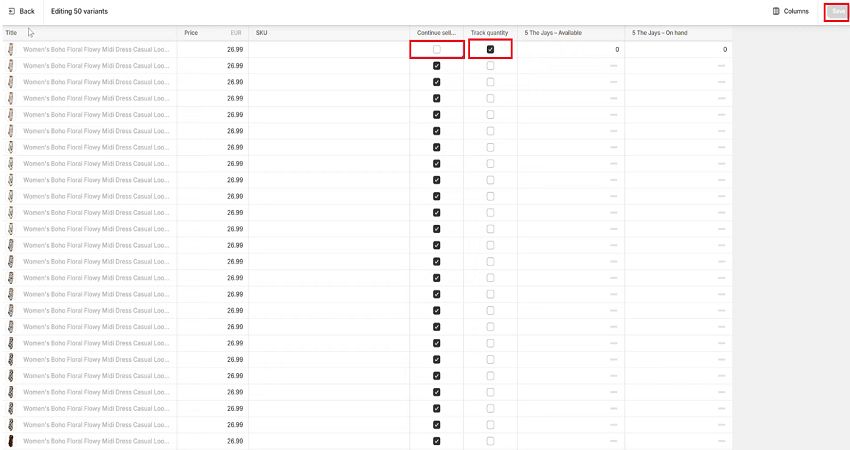
This matters most for apparel.
Very few products sell out evenly. Usually it’s one size or color that disappears first. Killing the entire product because “Small / Black” is gone is unnecessary revenue loss.
Shopify lets you control inventory at the variant level. Set that variant to zero and leave the others untouched.
From a UX standpoint, this is critical. Customers should see immediately that their selected option isn’t available—before they hit checkout. When done right, many will simply switch to another variant instead of abandoning the purchase.
Method 4: Use “Sold Out” Badges in Your Theme
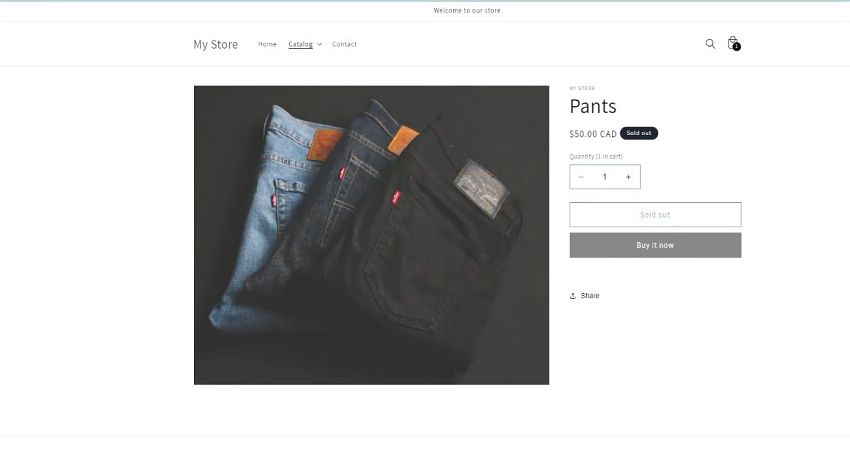
Functionality answers: can they buy it?
Design answers: do they know it’s gone?
A disabled button on a product page is fine—but only after the customer clicks. On mobile, that’s already too late.
Most Shopify themes allow you to enable Sold Out badges directly in the theme editor. These badges appear on collection pages, over the product image.
That small visual change saves users time and prevents frustration. If someone clicks three items in a row that are unavailable, they’re leaving. A badge lets them scan and move on.
This is one of those tiny UX details that quietly boosts conversion.
Method 5: Let Fulfillment Apps Handle It Automatically
If you run print-on-demand or dropshipping, manual inventory control doesn’t scale. You’re not counting finished products—you’re relying on upstream availability.
In those cases, automation isn’t optional.
Fulfillment apps sync supplier stock data directly to Shopify. When a specific blank garment or base product runs out, the app updates your listings automatically.
This is where platforms like PODpartner are useful in practice. Instead of tracking finished inventory, it tracks the availability of blank garments used for production. If a supplier runs out, listings update automatically, preventing overselling. For stores with large catalogs, that kind of automation is the difference between control and constant cleanup.
Why “Sold Out” Sometimes Doesn’t Show (Even When It Should)
If your product still looks available, one of three things is usually happening:
- A hidden location still has stock and is eligible for fulfillment
- Your theme is caching old data (check in an incognito window)
- An app is overriding inventory rules and forcing availability
Nine times out of ten, it’s a location issue.
Final Thoughts: Match the Method to Your Store Model
There’s no universal “best” way to mark a product as sold out.
Small catalogs benefit from manual control. Larger or automated stores need app-based syncing. Variant-heavy stores need precision. High-volume stores need reliability.
What matters is clarity.
Clear sold-out messaging builds trust, reduces refunds, protects reviews, and saves support time. When handled correctly, “Sold Out” doesn’t signal failure—it signals professionalism.
And in ecommerce, that matters more than squeezing one extra order through a broken system.
Further reading

No Order Minimums

No Membership Fees

No Unsold Stock

No Quality Concerns
Only Creativity, Satisfaction, and Profits!