
 USD
USD
[Tutorial] Switching over Product to PODpartner for Shopify Users

![[Tutorial] Switching over Product to PODpartner for Shopify Users](https://img.podpartner.com/static/CmsFiles/20251219_154921_278cac3bac.png?updatedAt=2025-12-19T07%3A50%3A11.049Z)
Migrating your existing Shopify listings to a new fulfillment provider often feels risky—especially when you've already invested time, money, and effort into optimizing your SEO, building listing authority, and ranking on Google.
PODpartner's import third-party product feature solves exactly this problem. It lets you keep your original product URL, product ID, SEO, and listing history fully intact while switching fulfillment over to PODpartner. This means you can continue selling the same product listing in your Shopify store, but PODpartner will fulfill all incoming orders.
If you're a Shopify seller looking to move some—or all—of your existing products to PODpartner without rebuilding your listings from scratch, this guide walks you through everything you need to know.
The Key Benefits of This Feature
This feature allows you to:
- Switch your existing Shopify product over to PODpartner without changing the product URL or ID.
- Keep your SEO ranking, listing authority, product history, and analytics untouched.
- Import third-party products (products not originally created on PODpartner) directly into your PODpartner dashboard.
- Bind your existing listing with a PODpartner product template so PODpartner becomes the new fulfillment provider.
Your customers will continue to see the same product page, but behind the scenes, fulfillment is handled by PODpartner.
What Details Are Affected During Migration?
When you migrate a listing to PODpartner, some details must change, some can be modified, and some depend on the specific binding method you choose.
What Will Change
- Product Connected to the Listing: You will select a product template you've created in PODpartner to be used for fulfillment. This requires you to upload your design to the PODpartner platform.
What Can Change (Optional)
- Shipping Rate: You have the flexibility to choose the original shipping profile you were using, a shipping profile provided by PODpartner, or create a brand new shipping profile.
- Price: You can update your product price in your Shopify admin.
What Depends on Your Chosen Method
Some listing details may change depending on whether you choose Bind Product Template or Switch to PODpartner:
- Product title
- Product description
- Product images
The two migration methods will be explained in detail in the steps below.
How to Migrate Your Products to PODpartner
Follow these simple steps to successfully migrate your existing products from Shopify to be fulfilled by PODpartner.
Step 1: Connect Your Store and Prepare Product Templates
Before starting the migration, you need to ensure your PODpartner account is ready:
- Connect Your Store: If you are a new PODpartner user, please complete the store connection steps after registering on the PODpartner platform. Refer to our guide on how to connect Shopify if needed.
- Create Product Templates: Crucially, please ensure you have created the necessary product templates in PODpartner before starting the migration. You will need to select an existing PODpartner template to bind your imported Shopify products to for fulfillment.
Step 2: Import Third-Party Products
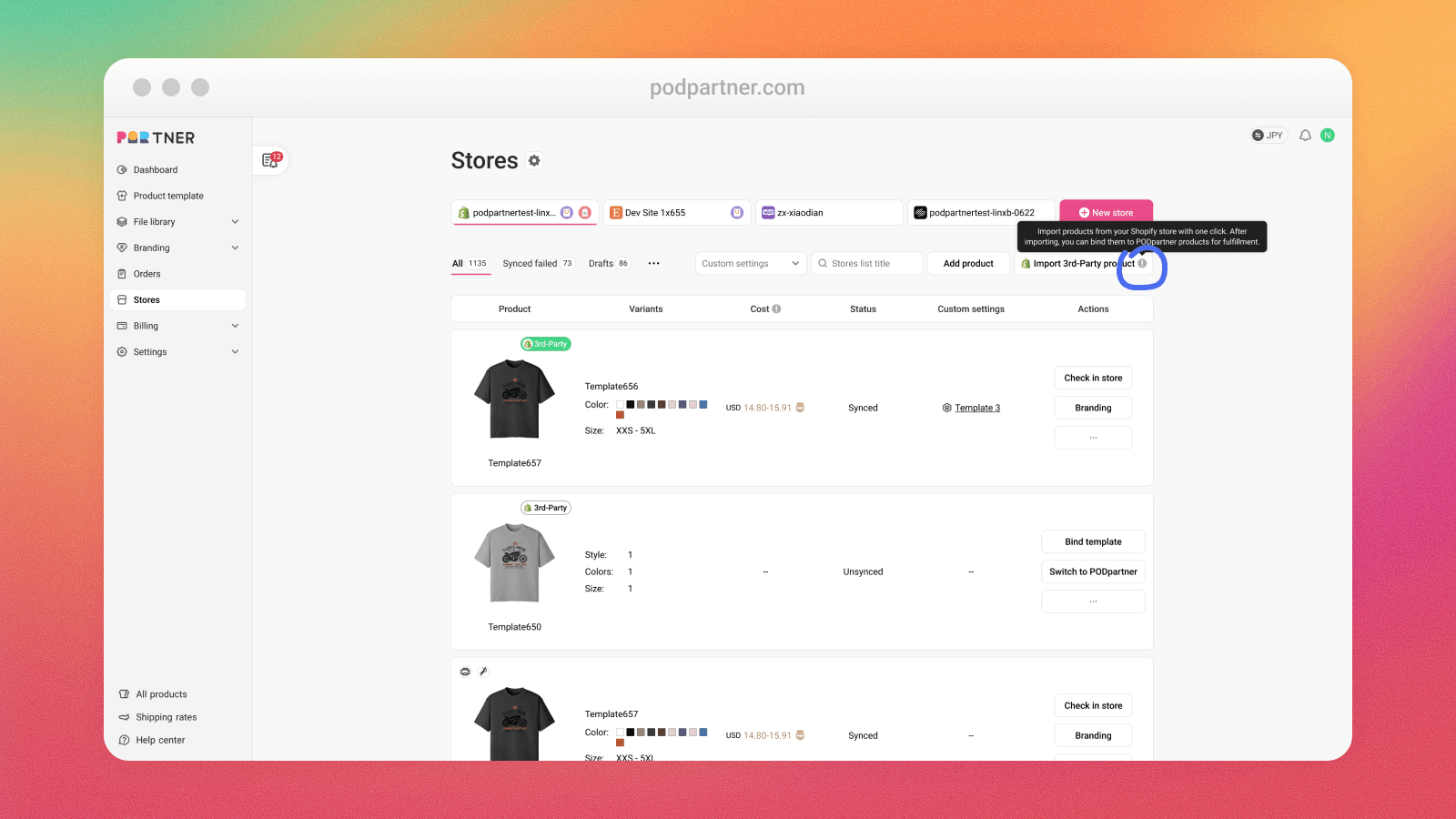
In the PODpartner dashboard, go to Stores from the left sidebar. Select your Shopify store. You'll see a button labeled "Import 3rd-Party Product". Choose the products you want to migrate for PODpartner fulfillment.
Step 3: Choose a Migration Method
After importing the products, you will choose one of two methods: "Bind product template" or "Switch to PODpartner".
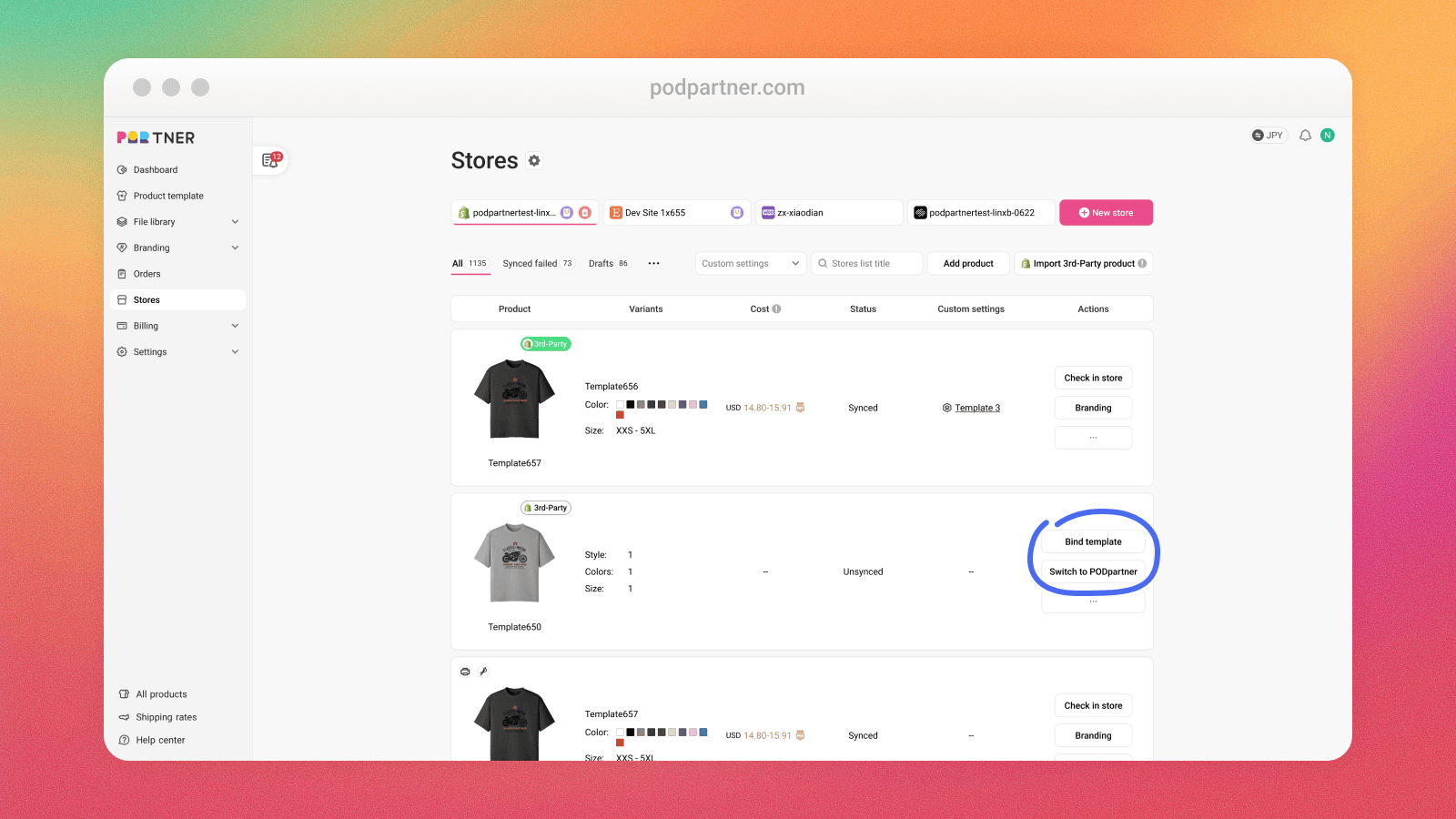
The method you choose determines which details of your listing can be updated and which parts of your product are fulfilled by PODpartner.
Option 1: Bind Product Template
This method is ideal if you only want to move some variants of a product to PODpartner fulfillment. Your existing mock-up image, product listing title, and product description are preserved from your Shopify store. You cannot modify images or the product description in this method.
Option 2: Switch to PODpartner
Choose this method if you want the entire product to be fulfilled by PODpartner and you want to refresh the listing details. This mode allows you to update the listing's details, including the product images, product description, and pricing. If you want to modify the product title or description, this is the method to proceed with.
| Feature | Bind Product Template | Switch to PODpartner |
|---|---|---|
| Applicable scenario | Only some variants fulfilled by PODpartner | Entire product fulfilled by PODpartner |
| Preserve product link | Supported | Supported |
| Modify price | Supported | Supported |
| Modify images | Not supported | Supported |
| Modify product description | Not supported | Supported |
| Processing time | 5 mins | 10 mins |
Step 4: Complete the Binding or Switching Process
If you selected "Bind Product Template":
- Click the "Bind template" button of the imported third-party product to go to the Product Info page.
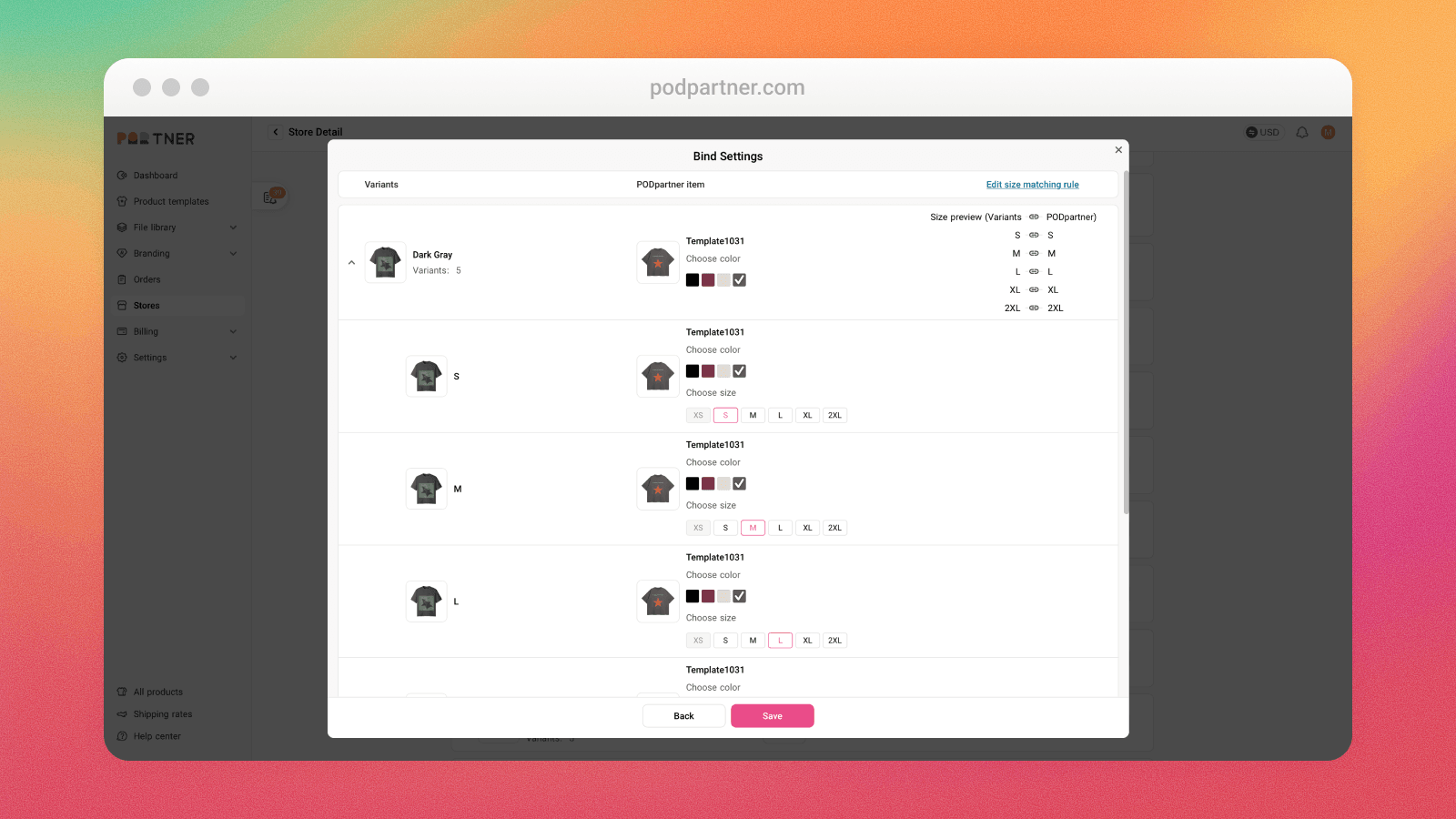
- Match options and enter the binding workflow.
- Select the PODpartner product template you want to use.
- Match Shopify variants with PODpartner variants—each variant can be edited individually, including size-mapping rules.
- Click Save.
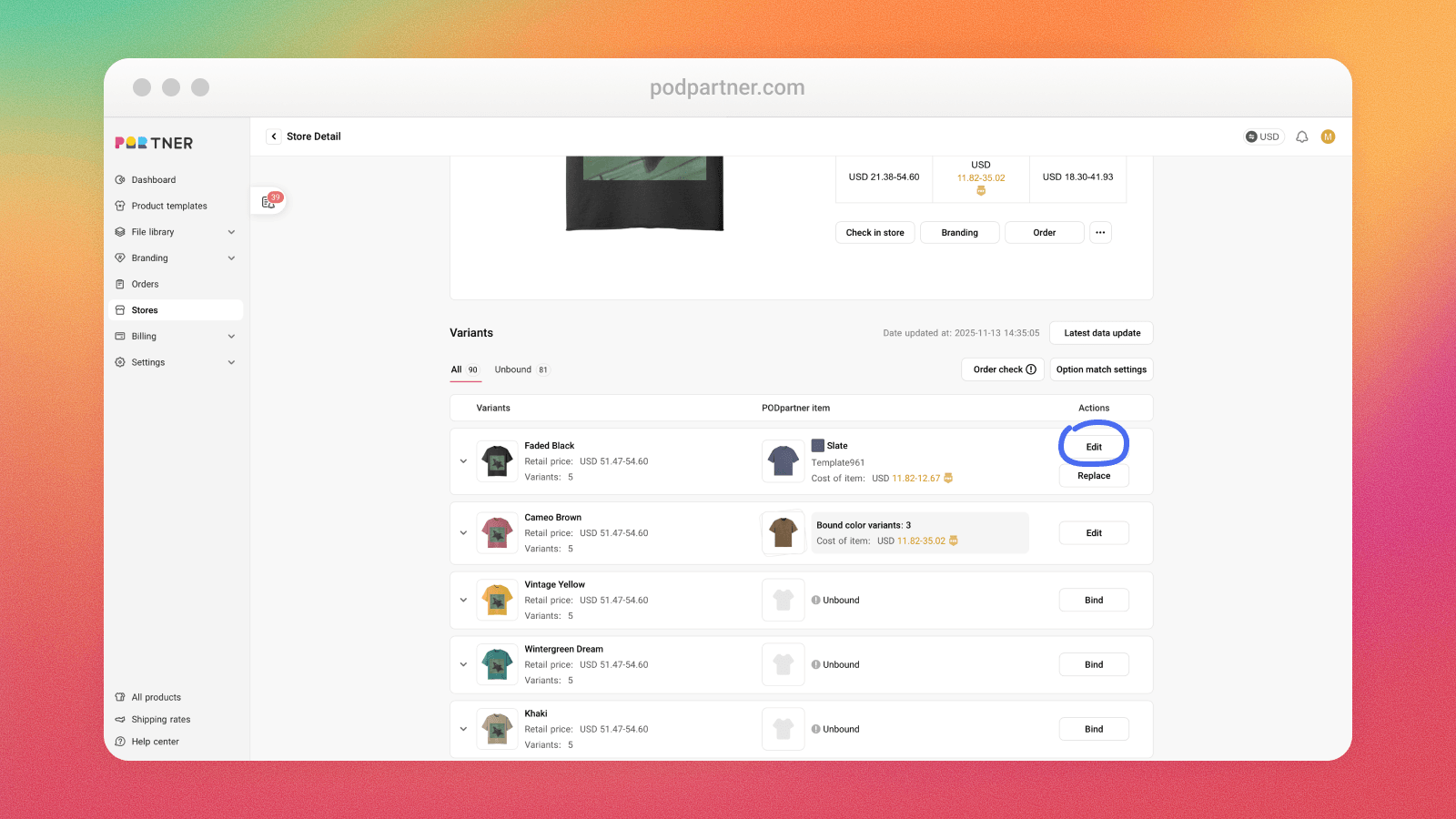
To Unbind a Variant: If you ever need to unbind a product variant from PODpartner, go to the product's Product info page, click the "Edit" button on the bound variant, and then click "unbind" on the PODpartner item in the pop-up window.
If you selected "Switch to PODpartner":
- Click the "Switch to PODpartner" button of the imported third-party product, which enters you into the flow for syncing products to your store.
- After you select a product that has been created, you can modify the Product details and pricing.
- Publish the updated product back to Shopify.
That's it — your Shopify orders (of variants you bound or products published via "Switch to PODpartner") will now be fulfilled by PODpartner.
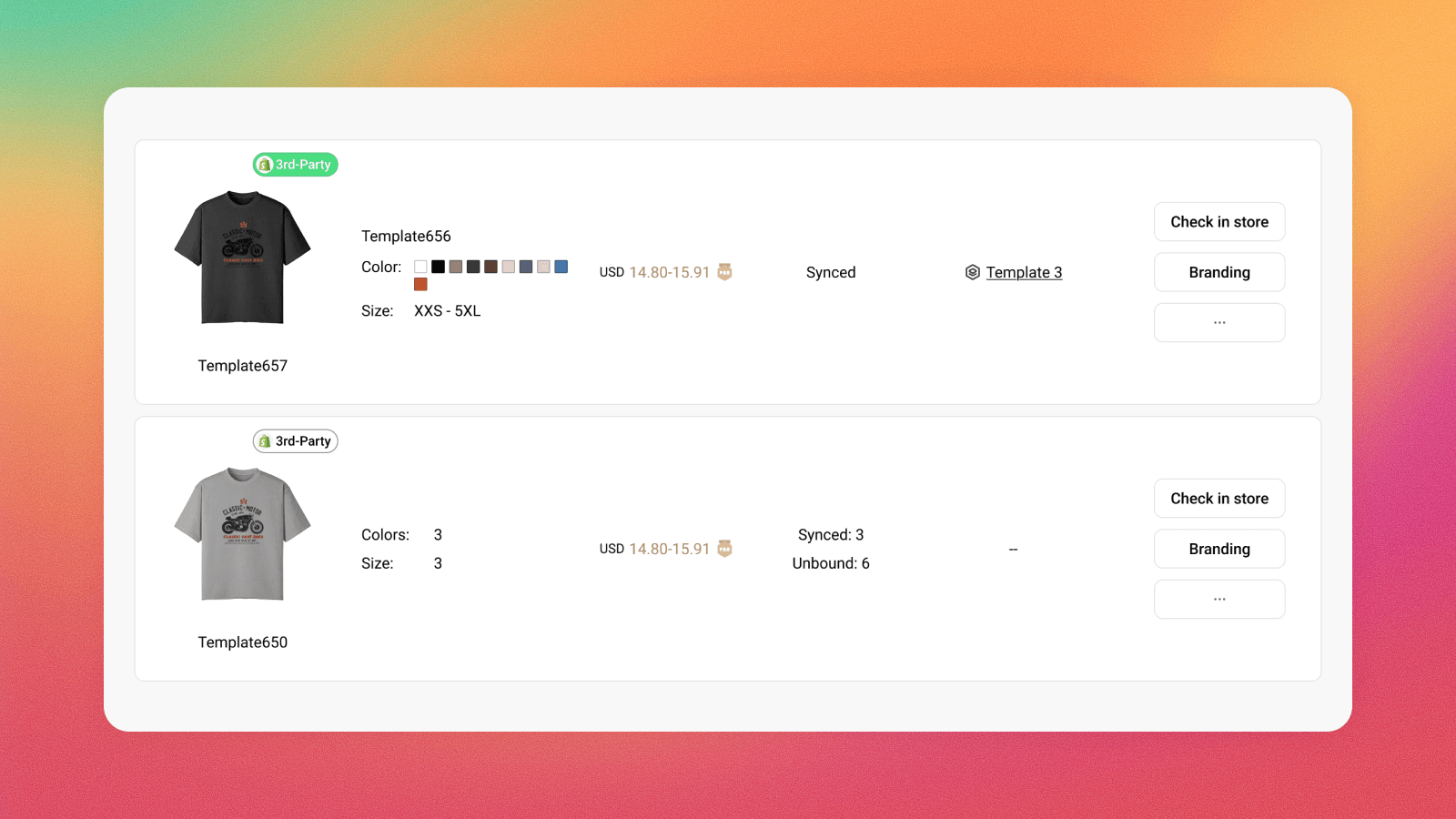
Quick Tip on Labels:
Products imported from Shopify will display a "3rd-Party" label inside your PODpartner dashboard.
- A green tag means all variants are bound and fulfilled by PODpartner now.
- A white tag indicates that there are existing unbound variants.
Need Help? We're Here for You
If you encounter any issues while using this feature, please contact our customer support team via email: service@podpartner.com.
Further reading

No Order Minimums

No Membership Fees

No Unsold Stock

No Quality Concerns
Only Creativity, Satisfaction, and Profits!