USD
USDWhy are my Shopify store products showing as sold out?
After connecting your Shopify store and publishing products, you may notice that some items appear as “Sold Out.”
This usually happens for one of the following reasons:
Common causes:
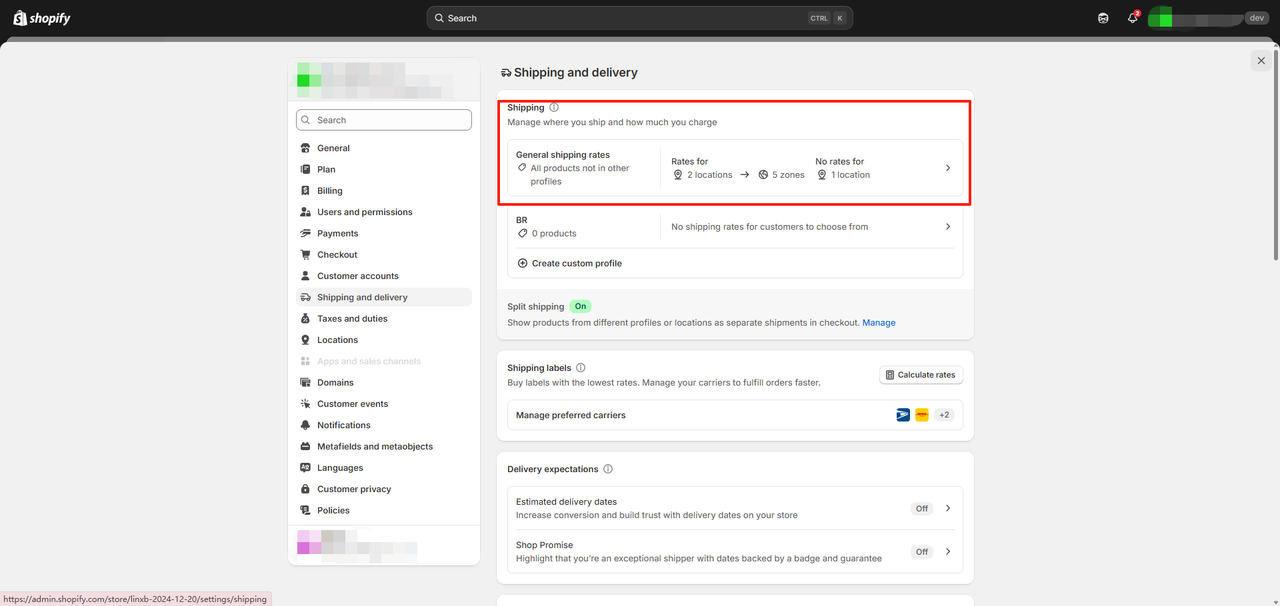
- Shipping rates are not set up in your Shopify store.
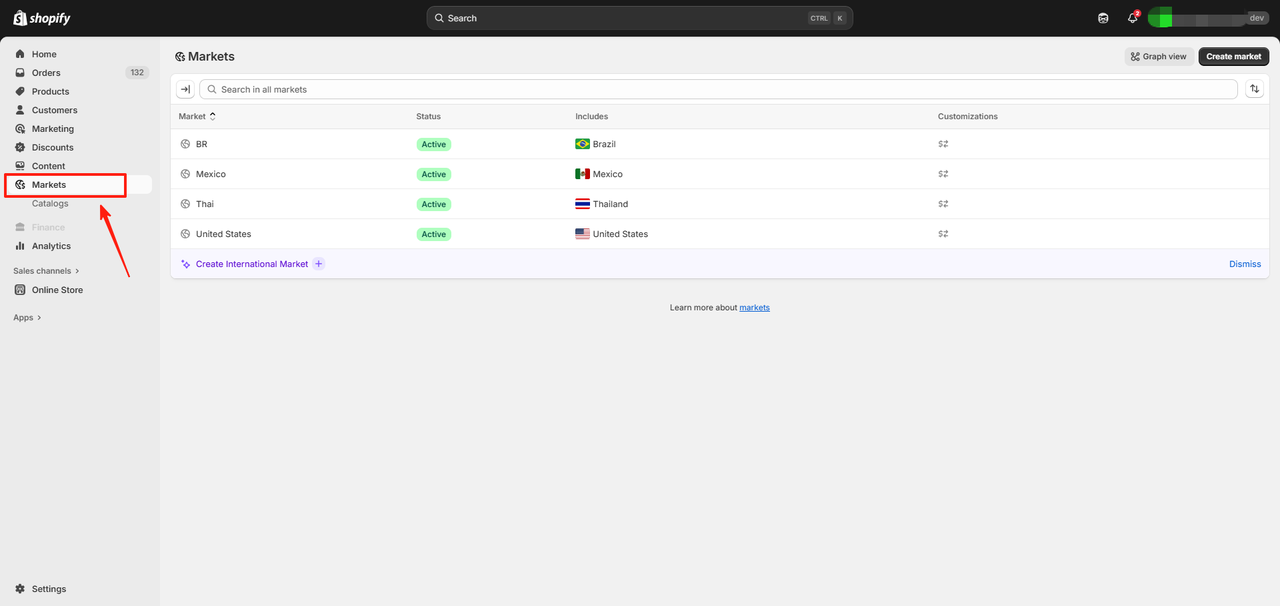
- No active shop markets have been configured for your store.
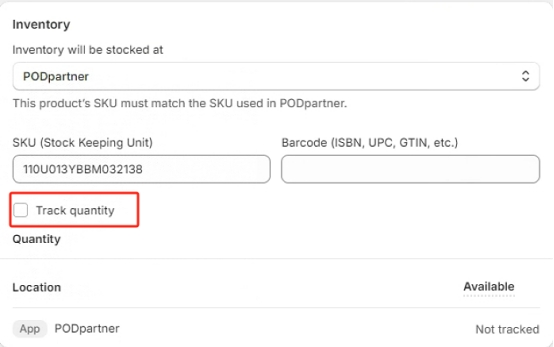
- The “Track Inventory Quantities” option in Shopify has been enabled manually.
How to fix it:
1.Set up shipping rates
Go to Shopify Admin > Settings > Shipping and delivery, and add your shipping rates.
Make sure all relevant regions and products have valid rates assigned.
2.Configure shop markets
In Shopify Admin > Settings > Markets, set up your target countries or regions where you want to sell.
Ensure that your products are available in those markets.
3.Disable inventory tracking
In your product settings, make sure “Track quantity” is turned off.
You can safely ignore notifications such as “Inventory is not tracked at PODpartner” or “Inventory is not tracked at any location.”