How do I create a product bundle for Shopify?
With just a few clicks, you can quickly create a bundle of multiple products on Shopify and sync them together to your online store as a single listing. For other platforms, you can create bundles of two products and sync them as a single listing.
1.When adding a product template to your integrated online store, you will see a button "Add product" under the variant settings;

2.Click the "Add product" button;
3.Choose another product template you want to bundle together from your list of product templates;

4.Select variants for the second product;

5.Configure variant settings(optional)
If you want to treat different product templates as independent variant types (e.g., styles), you can: Toggle "Use product template as a separate variant", the system will merge identical color names from different product templates into a unified option, providing a better user experience.
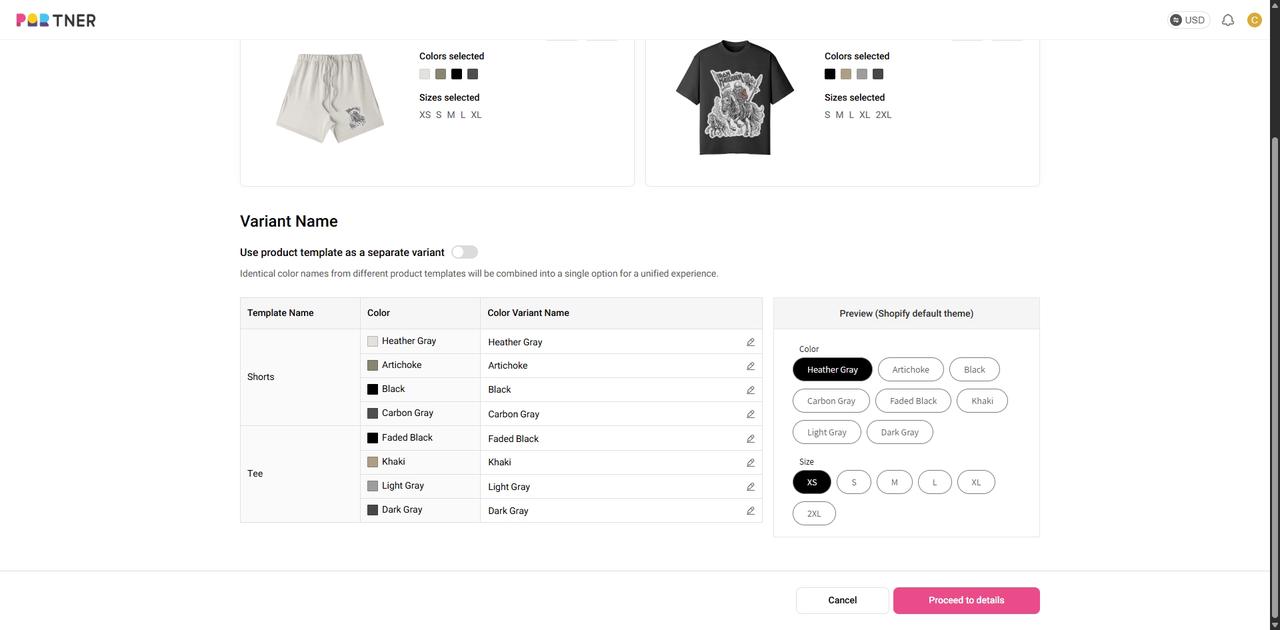
In the pop-up window, name the Template Variant. Click "Save" to save your settings.

6.Select product images and edit the product description for your bundle product page.
7.Link packaging design templates(if needed)
8.Set product prices for each product template, and you're ready to go!
Where can I manage my products?
Go to Dashboard > Stores > manage any of the following PODpartner products:
1. Products that you have published to your online stores;
2. Products that you have saved as drafts;
3. Products that failed to publish.
How do I sync product updates to my store listings?
1. Go to Dashboard > Stores;
2. Choose the online store where the product was published and find the product;
3. Click the "Edit description" button;
4. After updating the product description, click the "Continue to publish" button.
Note that you cannot change the product variants(sizes & colors) unless you publish a new product.
How do I change the variants of a published product?
If a product has been published to your online store, you can only change its variants by publishing it to your store again.
1. Go to Dashboard > Product Templates > find the template of that product;
2. Press "Add to store" and select the store where you want to publish the product;
3. Select product colors and sizes, edit product details, set product retail price, and click the "Continue to publish" button;
4. You may keep or delete the previous product in your store.
How do I edit product information?
If you want to edit a published product on PODpartner, see the steps below:
1. Go to Dashboard > Stores;
2. Choose the store where you listed the product;
3. Find that product and hover your cursor over the ellipsis at the right of the row;
4. Click "Edit" on the pop-up menu; (Please note that you can edit variants/mockups/product description/branding and pricing through this button.)
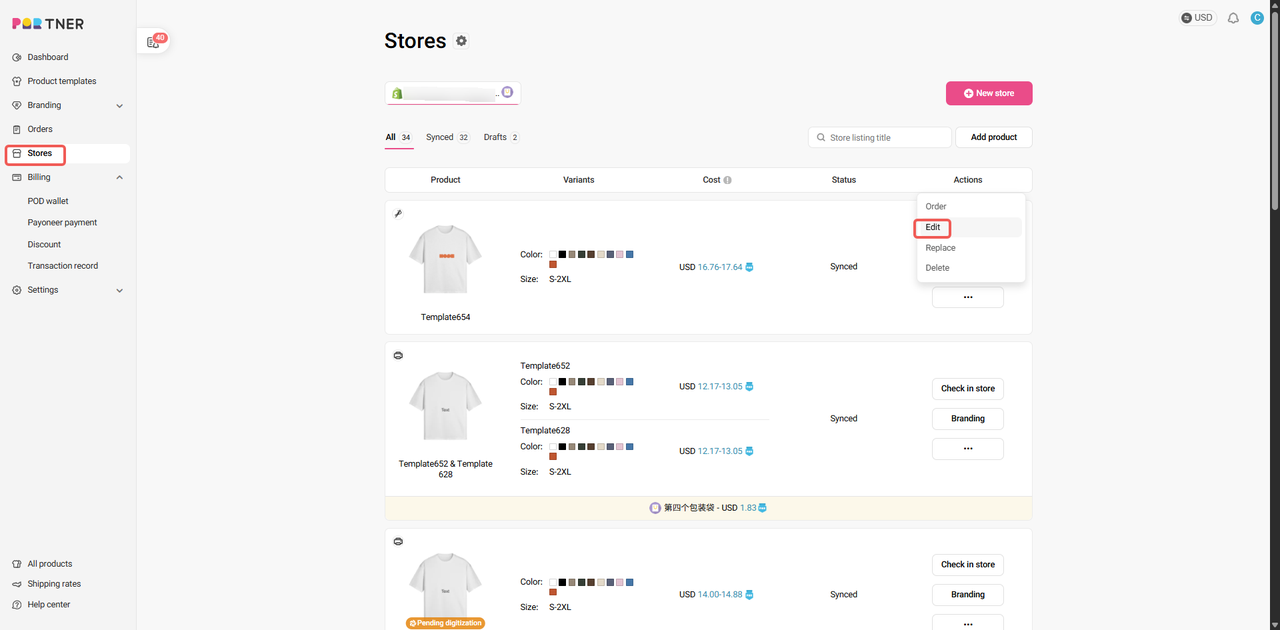
5. Make changes and press "Continue to publish";
6. Any changes to the product will be synced to your online store.
Note that after the updates, the visibility of your store listings will stay the same as what you set previously.
Why is my product status showing “To be updated”?
If you edit the description or price of a published product and click on “Save as draft” rather than "Continue to publish", the changes you make will not be synced to your store listings, and the product status will become "To be Updated". Only after you click the "Update" button will the changes be applied to your store listings, and the product status will switch back to "Synced".
Even if a product is “To be updated”, it can still be sold in your online store and sent to production by PODpartner. Please keep in mind that if you have changed a product’s retail price without syncing it to your store, the product will be sold at the previous price you set.
Note that if the product you save as a draft has never been published to your store, the product status will be “Draft” instead of “To be updated”.
Does your product price include shipping fee and tax?
Our product price does not include shipping fee or tax. The equation below shows how you will pay for each order.
Order cost = Product price + Shipping fee + Tax
Product price consists of two parts: garment price and total printing cost. Therefore, a product’s price may vary according to the number of prints added to it.
Shipping fee is determined by three factors: shipping method, destination, and clothing type.
Tax is calculated according to the tax policy of the country where the order will be delivered.
What are retail price and retail shipping price?
Retail price is how much you charge your customer for your product, and PODpartner's product price is what we charge you for the garment and the printing(excluding shipping fee and tax).
Retail shipping price is the amount you charge your customer for shipping, whereas the PODpartner shipping fee is how much we charge you for shipping out your order.
The total amount you pay for your order is as below:
Order cost = PODpartner product price + PODpartner shipping fee + Tax
And the price your customer pays is:
Your product's retail price + Your online store's retail shipping price
You are free to decide how to set the retail price and the retail shipping price. If you want your customer to cover the shipping fee, you can either include this cost in your retail price or set your retail shipping price equal to the PODpartner shipping fee.
How can I change a product’s retail price?
1. Go to Dashboard > Stores;
2. Choose the online store where the product was published and find the product;
3. Click the "Edit price" button to change product price;
4. After editing the price, click the "Continue to publish" button.
You can also go to your online store and directly change the retail price there, but the new price will not be synced to PODpartner. You will find the retail price on PODpartner different from what’s in your store.
It should be noted that the product that has been synchronized to squarespace can only be changed in its product price and product information on the squarespace website
How can I delete products from a store?
To effectively remove a listing, you must delete it from your online store. If you remove a product only from PODpartner, it means that any retail orders for this item will not be imported to PODpartner, but the listing will remain active in your store.

- How it works
- Shipping
- About us
- Blog
- CapabilitiesEmbroideryPersonalizationJumbo DTG
- Help center
 USD
USD